§28 AI_HISTORY¶
AI history is a list of the AI answers Tapeboard has written for you: stock briefings, market recaps, news digests, filing summaries, earnings analysis, trade reviews and more. Open an old one and you read the saved text, so it costs nothing. AI history needs a Pro plan. On a free account the page shows an upgrade card.
OVERVIEW¶
AI history — saved AI briefings generated for your account
What it is¶
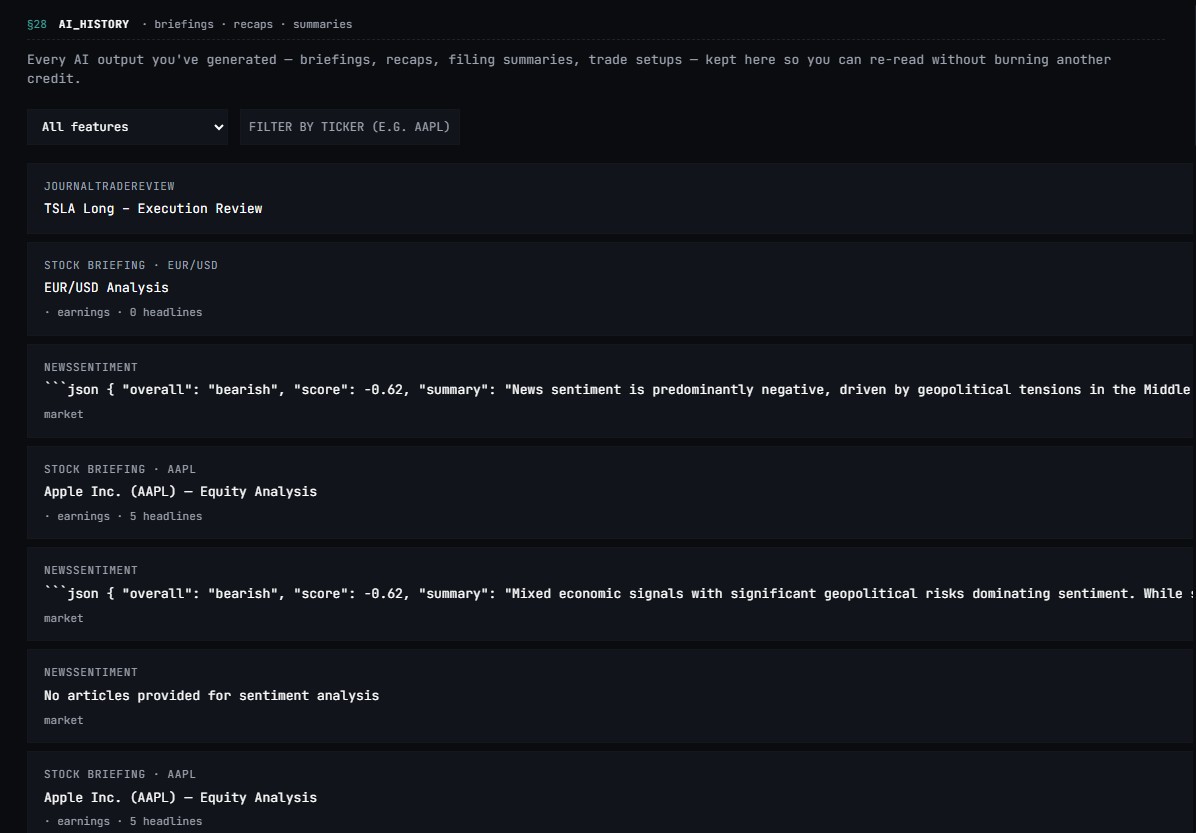
A paginated list of every AI output generated for your account, newest first. Each row shows the type of answer, the ticker, when it was made, and a short preview. Click a row to open a panel with the full saved text. Opening a saved answer never runs the AI again — it costs nothing to re-read.
An answer shows the data as it was when it was written, so prices and headlines in it may be out of date.
When a generation is slow or rate-limited¶
When an AI call takes longer than usual, the panel shows a small "this is taking longer than expected" notice after a few seconds instead of a silent spinner — so you know the upstream is slow, not broken. When the data source behind a tool is rate-limited (a temporary overload on a free-tier feed), you get a clear "upstream rate-limited — retry in ~60s" chip instead of a raw red error. Successful generations still land in AI History; rate-limited ones don't cost a credit.
WHEN TO USE IT¶
When you ran a briefing two hours ago and want to re-read it instead of re-generating. When you want to compare today's morning briefing to yesterday's. When you're at your daily limit and need to ration the remaining calls — every row here is one you don't have to repeat. When you're auditing your own AI spend before upgrading from Pro to Terminal.
ACCESS AND TIER GATES¶
Path: /ai-history
Keyboard shortcut: None
Tier-gate: AI history requires a Pro plan. On a free account the page shows an upgrade card.
HOW TO USE IT¶
1. Open the page
Click AI History in the sidebar. The page loads the 50 newest entries with a feature filter dropdown, a ticker filter input, and a Reset chip.
2. Filter by feature
Pick a feature from the dropdown to scope the list — for example Stock briefing or SEC filing summary. The dropdown covers: Stock briefing, Market recap, News digest, SEC filing summary, Bulk filings, Earnings analysis, Economic indicator, Economic summary, Bond summary, Weekly preview, Commodity briefing, Trade review, Watchlist risk, Journal analysis, Morning briefing, Company research, Trade setup, Portfolio health, Economic outlook and Earnings preview.
3. Filter by ticker
Type a symbol (e.g. AAPL) into the Filter by ticker input to narrow the list to outputs scoped to that stock. Click Reset filters to see everything again.
4. Open an entry
Click any row to open a panel with the full saved text. Read it, then close the panel. Opening a saved answer never runs the AI again.
5. Delete an entry
Open the row, click Delete, and confirm. The entry is gone from your history. The credit it used is not refunded.
Note
Deleting an entry does not refund the credit or trial usage. The original spend is locked in regardless of whether you keep the output. You can only delete your own outputs.
6. Page through history
Click Load more at the bottom to fetch the next 50 entries. Continue loading to page back through your full history.
7. Run a morning briefing from here
At the top of the page, the Morning Briefing card runs an AI briefing on overnight moves, earnings, and your watchlist. The result is saved to the list below.
Empty state
If the list is empty, run your first AI tool — such as a briefing on a Research page.
FIELDS¶
| Field | Source | Notes |
|---|---|---|
feature |
Which AI feature made it | E.g. stock briefing, market recap, filing summary, morning briefing, trade setup, portfolio health, journal review |
ticker |
The symbol it was about | Empty for market-wide features (recap, morning briefing, economic outlook) |
preview |
A short snippet | List view only; the panel shows the full content |
content |
The full output | Markdown, formatted the same as the original generation |
source_summary |
The context it was built from | E.g. 5 indices · 11 sectors · 10 headlines for a market recap, 10-K · 2026-03-15 · APPLE INC for a filing summary |
generated_at |
When it completed | Timestamp |
created_at |
When it was saved | Timestamp; the sort key |
The feature dropdown shows friendly labels for each AI feature.
LIMITS¶
| Limit | Detail |
|---|---|
| Free tier | AI history requires Pro. Free accounts see an upgrade card |
| Pro | Up to 150 new AI answers a day across all AI tools; resets at midnight UTC |
| Terminal | Up to 400 new AI answers a day |
| Chat (stock assistant) | Its own cap of 40 messages a day on the Research page |
| Retention | Indefinite — no automatic expiration. History grows until you delete entries manually |
| Size cap | None — heavy users with hundreds of long briefings accumulate without restriction |
| Credit refunds on delete | Not available. Deletes are permanent and credits are non-recoverable |
TROUBLESHOOTING¶
An upgrade card shows instead of my history
AI history needs a Pro plan. See Pricing.
A briefing I just ran is not appearing in history
Wait a few seconds and reload, or check that a filter is not hiding it. Only successful answers are saved — a request that fails or is still queued is not recorded.
The feature dropdown does not show a feature I use
The dropdown only surfaces features that are already present in your history. If you have never successfully generated a particular output type, it will not appear in the menu until you do.
My history is empty but I have generated outputs before
Run your first AI tool, such as a briefing on a Research page. Confirm previous outputs completed successfully — a generation interrupted by an error or network failure is not saved.
You hit a daily limit
It resets at midnight UTC. Saved answers can still be read for free at any time.