§21 NOTIFICATIONS INBOX¶
Notifications — Unified notification centre for all Tapeboard alerts and system messages.
URL:
tapeboard.com/inbox
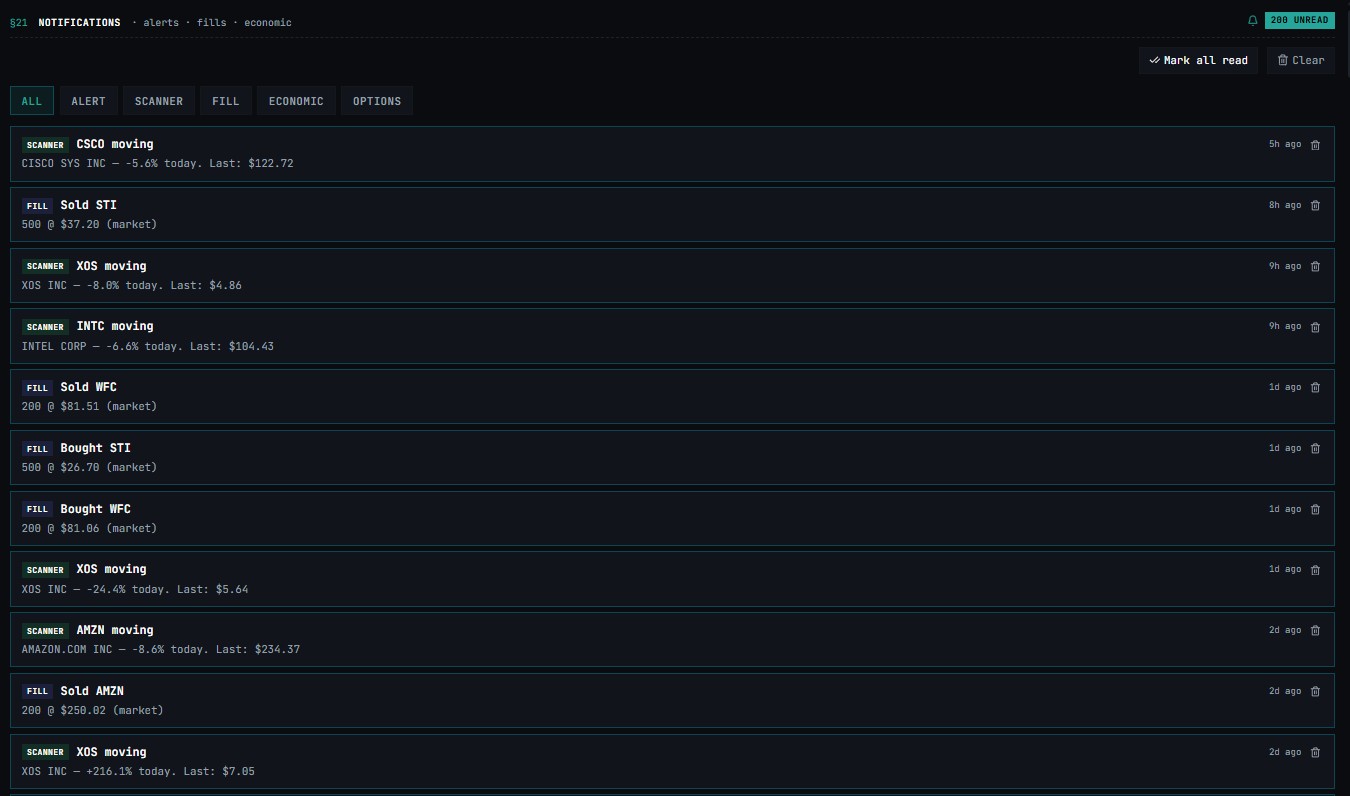
The Inbox is the central log of every notification Tapeboard has generated for your account — triggered alerts, scanner hits, order fills, economic release reminders, and options flow signals.
How to Navigate¶
Click INBOX in the left sidebar under §TOOLS.
Filter Tabs¶
Five tabs filter notifications by type: Every notification across all types (default)
ALERT¶
Price and indicator alerts you set in the ALERTS module |
SCANNER¶
Notifications from scanner presets hitting criteria |
FILL¶
Paper trade order fills from the SIMULATOR |
ECONOMIC¶
Scheduled economic release reminders and results |
OPTIONS¶
Options flow alerts and unusual activity notifications |
Empty State¶
Notifications appear here as alerts trigger, scanner criteria are met, or system events occur.
Notification Card¶
(when populated)
Each notification shows:
- Type badge — ALERT · SCANNER · FILL · ECONOMIC · OPTIONS
- Ticker (if applicable) — links directly to Research for that ticker
- Message — description of what triggered the notification
- Timestamp — time the notification was generated
- Read/Unread indicator — bold = unread, dimmed = read
How to Use Inbox¶
- Check at market open — review overnight SCANNER and ECONOMIC notifications
- Filter to ALERT — see which price alerts triggered during the session
- Filter to FILL — confirm paper trade executions from the Simulator
- Filter to ECONOMIC — review economic release results and their market impact
- Mark as read — click a notification to mark it read and open the linked module
Notification triage
Check Inbox at three points daily: (1) pre-market for overnight alerts, (2) first 30 minutes after open for scanner hits, (3) post-close for after-hours filings. Don't let unread count accumulate — stale alerts create noise.