§02 CHARTS - MY WATCHLIST¶
— Personal ticker list with live prices, %change, and chart linking.
URL:
tapeboard.com/watchlist
What It Is¶
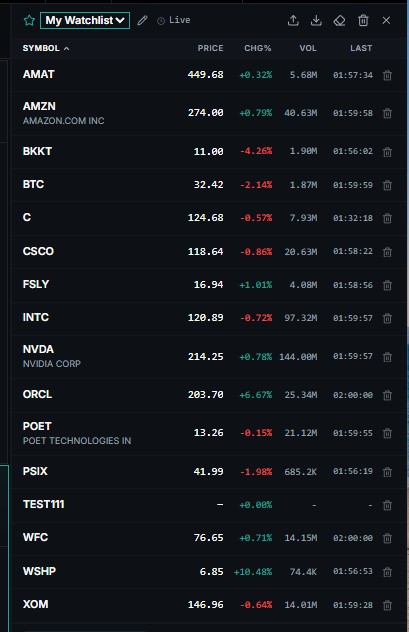
My Watchlist is a persistent, named list of tickers that follows you across the terminal. It surfaces in the Dashboard (§07 WATCHLIST_MOVERS), the Charts panel sidebar, the Calendar's AI Earnings Preview, the News filter, and the Correlation tool. Each panel in multi-chart mode can independently link to a watchlist slot by colour.
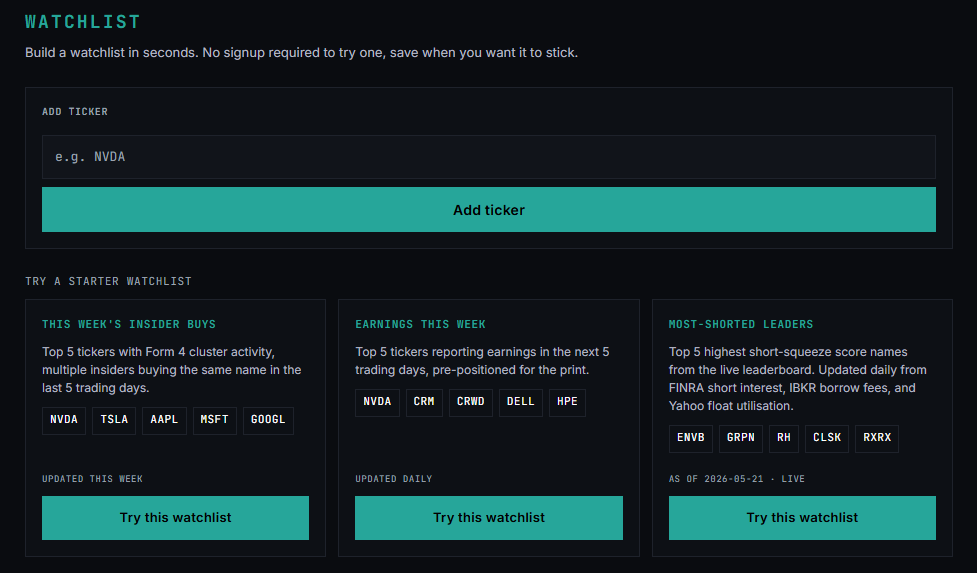
A watchlist per section.
Now each section remembers the watchlist you last used there. While you're in Forex, switch the panel to your Forex list once, and from then on Forex always opens with it; Crypto shows your crypto list; Commodities its own; and so on.
Tier Limits¶
| Plan | Max Symbols | Max Lists |
|---|---|---|
| Free | 10 | 1 |
| Pro | 50 | Unlimited |
| Terminal | Unlimited | Unlimited |
Adding Tickers¶
Four entry points — all write to the active list:
| Method | How |
|---|---|
+ Add ticker… input |
on the bootom — type a symbol and press Enter |
[ WATCH ] button |
On any Research page — adds that ticker to the active watchlist |
| Scanner shortcut | Highlight a row, press W |
⌘K palette |
Type >watch NVDA to add without leaving the current page |

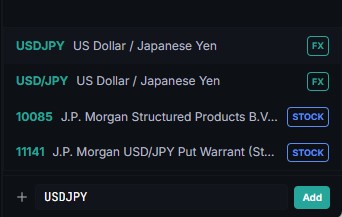
Start typing the ticker symbol. The platform will display matching suggestions, allowing you to select the correct asset type, such as stock or crypto, when multiple results share the same ticker.
Removing/Renaming Watchlist/Symbols¶
| Method | How |
|---|---|
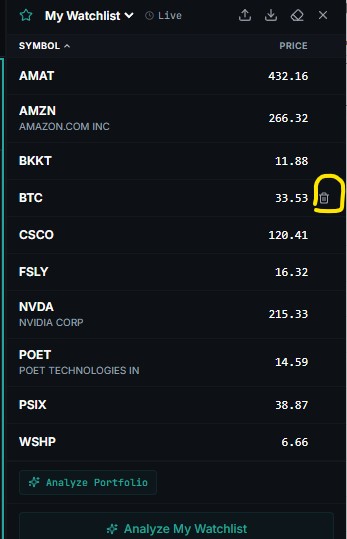
| Trash icon | Hover any row in the watchlist panel — click × or the trash icon to remove |
| Move mouse on the symbol | * |
| Rename | In the top right select Rename watchlist F2 |
| Bulk | In the top right select Bulk import tickers |
| Export | In the top right select Export watchlist like CVS |
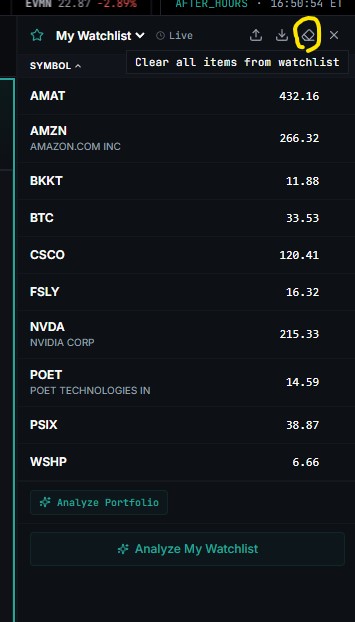
| Clear | In the top right select Clear all items from watchlist |
| Delete | In the top right select Delete this list |
| Close | In the top right select Close watchlist |
Tickers Filter¶
The filter bar appears above the watchlist ticker list. Click right on the header of the Watchlist
| Control | Function |
|---|---|
| Search input | Type any partial ticker or name — list filters in real time |
[ A–Z ] sort |
Toggle alphabetical sort ascending / descending |
[ Price ] sort |
Sort by Price |
[ Chg% ] sort |
Sort by intraday % change — gainers or losers first |
[ Vol ] sort |
Sort by volume |
[ Last ] sort |
Sort by |
| Category tags | Filter by sector tag if tags have been applied to symbols |
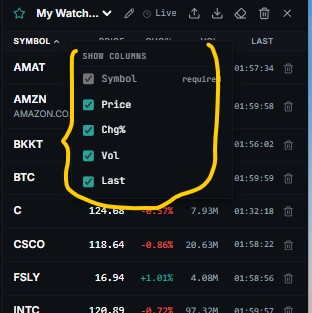
Filters are session-scoped — cleared on page reload. Sort preference persists per-account.
Managing Lists¶
Bulk Import Tickers¶
Bulk-add symbols paste directly.
Click [ IMPORT ] in the watchlist panel toolbar
or with a header:
Bulk_import_tickersCreate a new watchlist
Merge into existing
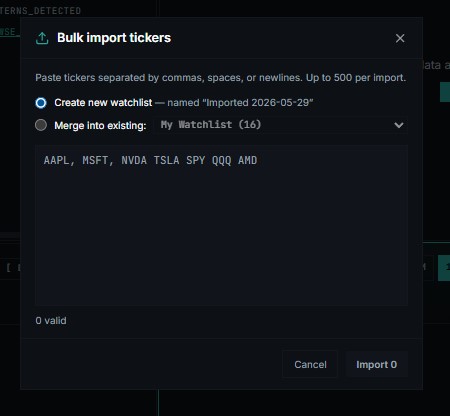
Notes column is ignored on import — symbols only.
Tier cap
Import stops at your tier limit. Free accounts importing more than 10 symbols will have the excess dropped — the first 10 rows are imported.
Export Watchlist like CVS¶
Download the active watchlist as a CSV file.
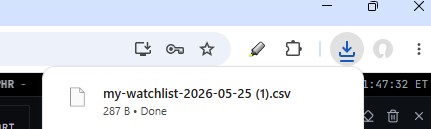
- Click
[ EXPORT ]in the watchlist panel toolbar - A
.csvfile downloads immediately — filename:watchlist-<listname>-<date>.csv
Export format:
Use the exported file to re-import to a different account, back up your lists, or load into a spreadsheet for further analysis.
Delete one ticker from the list¶
Clear all items from watchlist¶

Delete this list¶
Destructive action
Deleting a list permanently removes it and all its symbols. This cannot be undone.
Close Watchlist¶
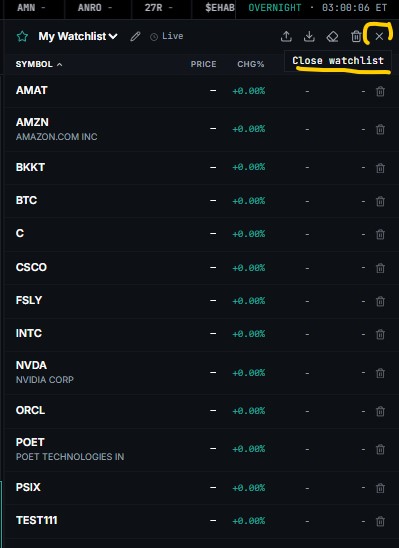
Open Watchlist closed¶
On every page in the right side

Create a New List¶
To create a new list, the current procedure is to import the tickers. The list will then be created automatically with a name such as “Import” followed by the import date. After the list is created, it can be renamed.
Rename a List¶
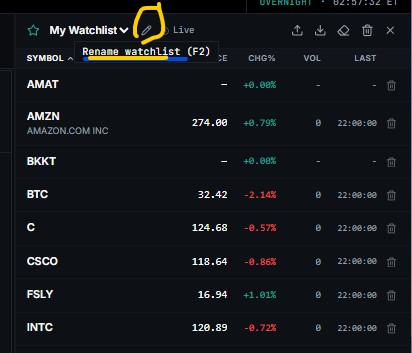
Once clicked on the name you can rename and hit ENTER or F2
Switch Active List *NOT ACTIVE YET¶
Click the watchlist dropdown and select any saved list. The active list is the one referenced by the Dashboard panel, Calendar AI preview, and News filter.
Watchlist Across the Terminal¶
The active watchlist feeds multiple modules automatically:
| Module | How it uses the watchlist |
|---|---|
| Dashboard §07 | WATCHLIST_MOVERS — sorted by intraday % change |
| Dashboard §09 | WATCHLIST_EARNINGS — next 7 days of earnings for your tickers |
| News | Watchlist filter tab — headlines mentioning your tickers only |
| Calendar | AI Earnings Preview scopes to the active watchlist |
| Correlation | [ + WATCHLIST ] button bulk-loads all symbols |
| Alerts | Suggested targets default to watchlist tickers |
Troubleshooting¶
Watchlist panel is empty after import. The import hit the tier cap — Free is limited to 10 symbols. Check Settings → Plan to see your current count vs. limit.
Symbol added but not showing live price. The ticker may not be in the active streaming universe. Very illiquid OTC names and some international tickers do not receive a real-time quote. Price will update on the next poll cycle (15s).
Watchlist Movers on Dashboard is empty. No active watchlist is selected, or the active list has no symbols. Open /watchlists, confirm a list is active, and add at least one symbol.
Export CSV is missing symbols. Only symbols in the currently active list are exported. If you have multiple lists, switch to the right one before exporting.
W key shortcut not working in Scanner. The shortcut fires only when a row is highlighted and focus is outside an input field. Click a row first to select it, then press W.