Settings - Manage your subscription and preferences
OVERVIEW
Settings is where you manage who you are, what you pay, how Tapeboard reaches you and how it looks. You need to be signed in to open it.
How to open Settings
- On a computer, click Settings at the bottom of the sidebar.
- On a phone, tap More, then Settings.
- Pick a tab across the top: Account, Billing, Notifications or Preferences.
Each tab has its own address, so you can bookmark it: tapeboard.com/settings#billing, tapeboard.com/settings#alerts (the Notifications tab) and tapeboard.com/settings#preferences. With no ending you land on Account.
Where to find each task
| I want to | Tab | Guide |
|---|---|---|
| Turn on two-factor sign-in | Account | Account and security |
| Change my sign-in email | Account | Account and security |
| Download or delete my data | Account | Account and security |
| Share my referral link | Account | Account and security |
| Export or import my layout | Account | Make Tapeboard yours |
| See my plan or cancel | Billing | Billing and your plan |
| Check my AI usage today | Billing | Billing and your plan |
| Turn on phone push alerts | Notifications | Install the Tapeboard app |
| Choose where alerts reach me, set quiet hours | Notifications | Notifications |
| Mute one noisy ticker | Notifications | Notifications |
| Change a keyboard shortcut | Notifications | Keyboard shortcuts |
| Pick a theme or Calm mode | Preferences | Preferences |
| Set timezone, extended hours, ticker bar | Preferences | Preferences |
| Send tickers to my trading app | Preferences | Open tickers in your trading app |
A note on alerts
The Notifications tab controls delivery: which alerts reach you, by which channel and when. The rules themselves, such as "tell me when AAPL crosses $200", are made under Alerts in the sidebar. See Alerts.
Good to know
Settings that follow your account, such as theme and timezone, show up on every device you sign in on. A few stay on one device, and Preferences says which.
Need help? Email [email protected]. Marcus reads it.
If something doesn't work
- Settings sends you to the sign-in page: sign in first.
- A change didn't save: check your connection and try again. If it keeps failing, email [email protected].
THINGS YOU CANNOT DO HERE (BY DESIGN)
A couple of traps that were laid by earlier versions of this page and are gone now:
There is no "browser notifications" toggle separate from device push — push is the OS notification channel. If you keep thinking they should be separate things, that's the old page talking; the merged version is device push only.
There is no separate "alert email address" field: alert email goes to your account email. Change your account email on the Account tab.
APPEARENCE
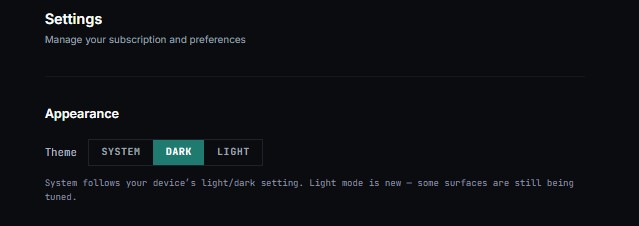
Theme
system
dark
light
System follows your device's light/dark setting. Light mode is new — some surfaces are still being tuned.
TWO-FACTOR AUTHENTICATION
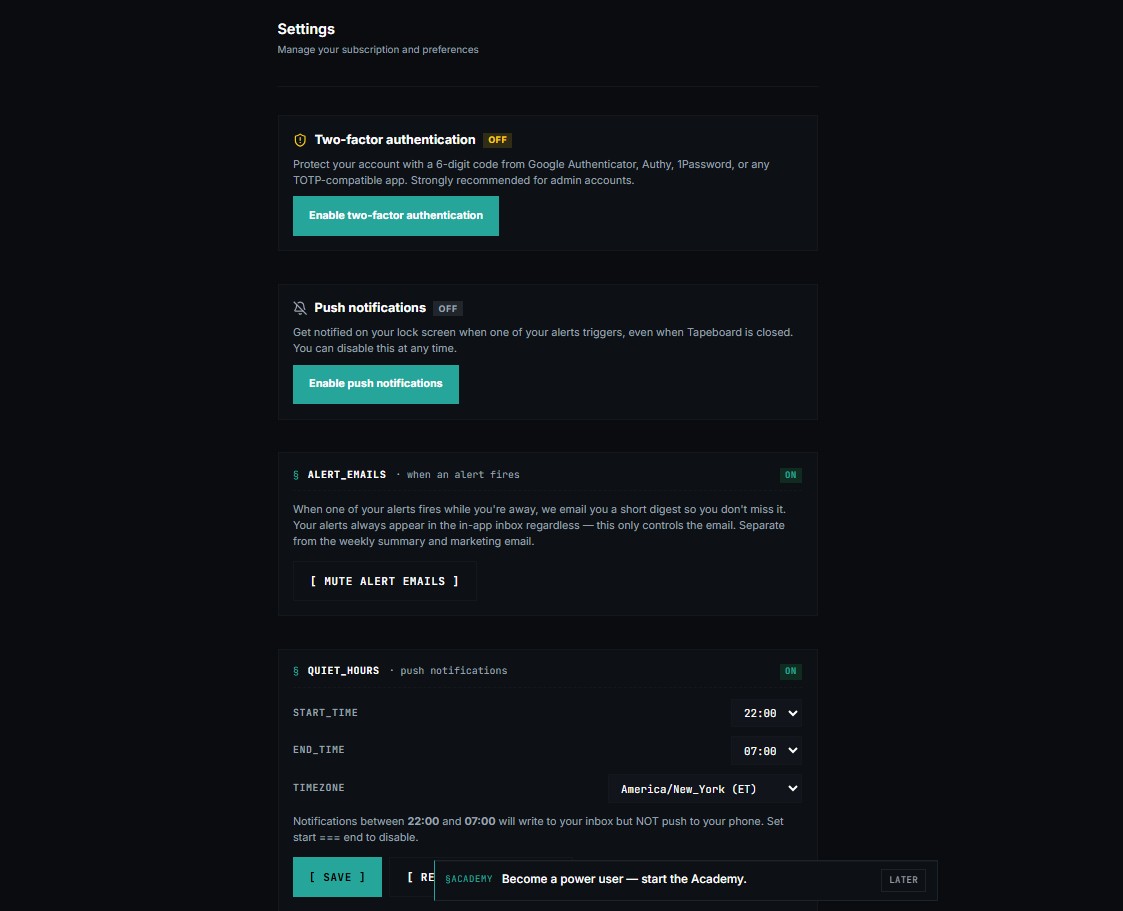
The top section of the Account tab, placed first on purpose so power users and admins enroll before they drop into chart defaults. It uses time-based one-time passwords (TOTP) — the same standard Google Authenticator, Authy, 1Password, and Microsoft Authenticator speak.
The section has three states. When 2FA is off, you see an Enable two-factor authentication button. Clicking it generates a secret and a QR code. Scan the QR with your authenticator app (or expand Can't scan? Enter this secret manually to type the secret), then enter the first six-digit code your app generates and press Verify. On success the banner flips to On with the enrollment date.
Once enrolled, every future sign-in requires a fresh six-digit code. To turn it off, click Disable 2FA, then confirm your current account password (not a code) — that path also covers the lost-authenticator recovery case, since you can disable with the password alone.
Tip
The password-based disable path also serves as lost-authenticator recovery. You do not need the authenticator app to turn off 2FA — only your account password.
PROFILE + EMAIL
Your display card sits at the top of the Account tab. To change the account email itself, use the Change email card: enter the new address, a verification link is sent to the new address first, and the old address stays usable as a login alias so you're never locked out mid-move.
PUSH NOTIFICATIONS
Opt-in to OS-level web push so alerts reach your lock screen even when Tapeboard is closed. The toggle subscribes your browser for push and registers it to your account; triggered alerts are then delivered to your device in addition to the in-app inbox. Alerts fire within about a minute of meeting their condition during market hours.
Push is per-device — enable it on each browser and phone you want notified, and you can Disable push on this device independently. On iOS there is a catch the section spells out: Safari refuses to subscribe from a normal tab. You must install the PWA first (Share → Add to Home Screen) and open Tapeboard from the home-screen icon; only then will the enable button succeed. iOS 16.4 or newer is required. Browsers without push support (or with the permission denied) show an inline explanation instead of the button.
iOS requirement
Safari will not subscribe from a normal browser tab. You must install the Tapeboard PWA first (Share → Add to Home Screen), then open Tapeboard from the home-screen icon. iOS 16.4 or newer is required.
CHANNELS BY ALERT TYPE
A grid of kind × channel — in-app inbox, device push, email. Tick what you want. Price alerts, halts, and fills default everywhere; watchlist movers default to push; digests default to email.
Note
Every toggle here is delivery-only — none of it pauses your alert rules or scanner logic. Delete rules at /settings/alerts.

QUIET HOURS
A daily window during which alerts that would normally push to your device are routed to the inbox only — useful for not getting buzzed overnight. Pick Start time, End time (both on the 24-hour clock), and a Timezone, then click Save. The default is 22:00 to 07:00 in America/New_York.
Available timezones
- America/New_York
- America/Chicago
- America/Denver
- America/Los_Angeles
- UTC
Note
The quiet hours timezone is independent of the Timezone Display setting in Preferences. Set each one explicitly. Changing your display timezone does not automatically shift your quiet hours window.
Historical note
This control famously didn't do anything before 2026-09-01; it does now. If your setting looks wrong, re-set it once.
MUTED_SYMBOLS
· per-ticker push pause
No muted symbols. Pushes fire for every alert that meets your other settings.
Type a symbol and press MUTE to pause pushes for it. Inbox notifications still fire — only push delivery is suppressed.
REFER_A_TRADER
· share your link
Refer a trader — they get 50% off their first month, and you get $10 account credit once they've been a paying member into a second month. One stable link, yours to share anywhere.
https://tapeboard.com/?ref=dVWclG2l
Product analytics & session recording
Helps us see how the terminal is used and fix issues faster. Inputs are masked and passwords are never recorded. Turn this off to opt out of all analytics and session recording on this device.
On — analytics and session recording are active.
Your data rights
Export my data (JSON) Delete my account
Export my data (JSON) hands you a single file with your profile, watchlists, alerts, journal, simulator state, and subscription record — no credentials or card numbers. It satisfies your GDPR right of access / right to data portability.
Delete my account needs your password and typing DELETE; it's permanent and not reversible. If you have an active Stripe subscription, cancel it from the billing portal before deleting so you're not invoiced again.
Reset Progress
// Permanently delete your data for selected surfaces. Irreversible.
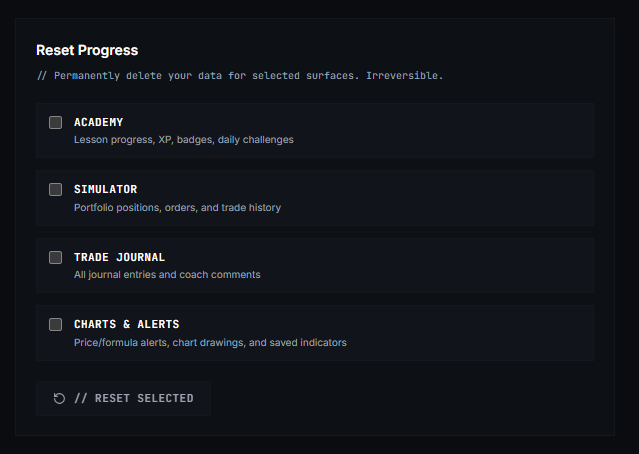
// Permanently delete your data for selected surfaces. Irreversible.
Academy Lesson progress, XP, badges, daily challenges
Simulator Portfolio positions, orders, and trade history
Trade Journal All journal entries and coach comments
Charts & Alerts Price/formula alerts, chart drawings, and saved indicators // Reset selected
Current Plan
The Current Plan card shows your tier (Free / Pro / Terminal) and trial state. If you're paid, Manage Billing opens the Stripe portal for plan changes, cards, invoices, and cancellation. If you're free, it routes you to /pricing — there's nothing Stripe-side to manage yet. A successful checkout flips the badge immediately (with a TIER_ACTIVATED banner).
AI Usage Today
Per-day counters for AI features show on the Billing tab for Pro/Terminal. Bars go amber at the cap. Terminal reads Unlimited.
Stock Analysis 0 / Unlimited News Digest 0 / Unlimited Economic Explain 0 / Unlimited Command AI Q&A 0 / Unlimited Watchlist Risk 0 / Unlimited workflow.morningBriefing 0 / Unlimited workflow.companyResearch 0 / Unlimited
Preferences
Theme — system / dark / light — System follows your device's light/dark setting.
Default chart timeframe — what a fresh chart opens at (1m … weekly)
Timezone display — your display clock; market times stay ET everywhere
Show extended hours — toggles pre/post-market candles and extended-hours scanner quotes
Auto-refresh — off freezes data until you refresh manually
Top ticker bar
— the scrolling strip across the top; comma-separated symbols, $-prefix for indices ($VIX, $DXY). Defaults: SPY, QQQ, DIA, IWM, $VIX, $DXY, $TNX.
SPY, QQQ, DIA, IWM, $VIX, $DXY, $TNX
Workspace — export/import your layout (charts, panels, drawer geometry) as a JSON file
Hotkeys
— per-action rebinding; click a binding, press the new combo, Esc cancels. Full list at Keyboard Shortcuts
Reset progress — wipes local learning-state (wedge dismissals, tours, academy progress) after a typed confirmation
Recording consent — opt out of session recording (PostHog Replay / heatmaps)
Hotkeys
Changes saved automatically
Click a binding to reassign. Press Escape to cancel.
Reset Defaults
Toggle Audio Mute/unmute all scanner audio M
Pause Scanner Freeze/resume scanner data Space
Pop Out Panel Pop out focused panel to new window P
Clear Drawings Clear all drawings on focused chart Shift X
Load Workspace 1 Load saved workspace slot 1 Ctrl 1
Load Workspace 2 Load saved workspace slot 2 Ctrl 2
Load Workspace 3 Load saved workspace slot 3 Ctrl 3
Load Workspace 4 Load saved workspace slot 4 Ctrl 4
Load Workspace 5 Load saved workspace slot 5 Ctrl 5
Next Preset Switch focused scanner to next preset ']'
Previous Preset Switch focused scanner to previous preset '['
Show Hotkeys Toggle hotkey help overlay ?
See the full list at Keyboard Shortcuts.